
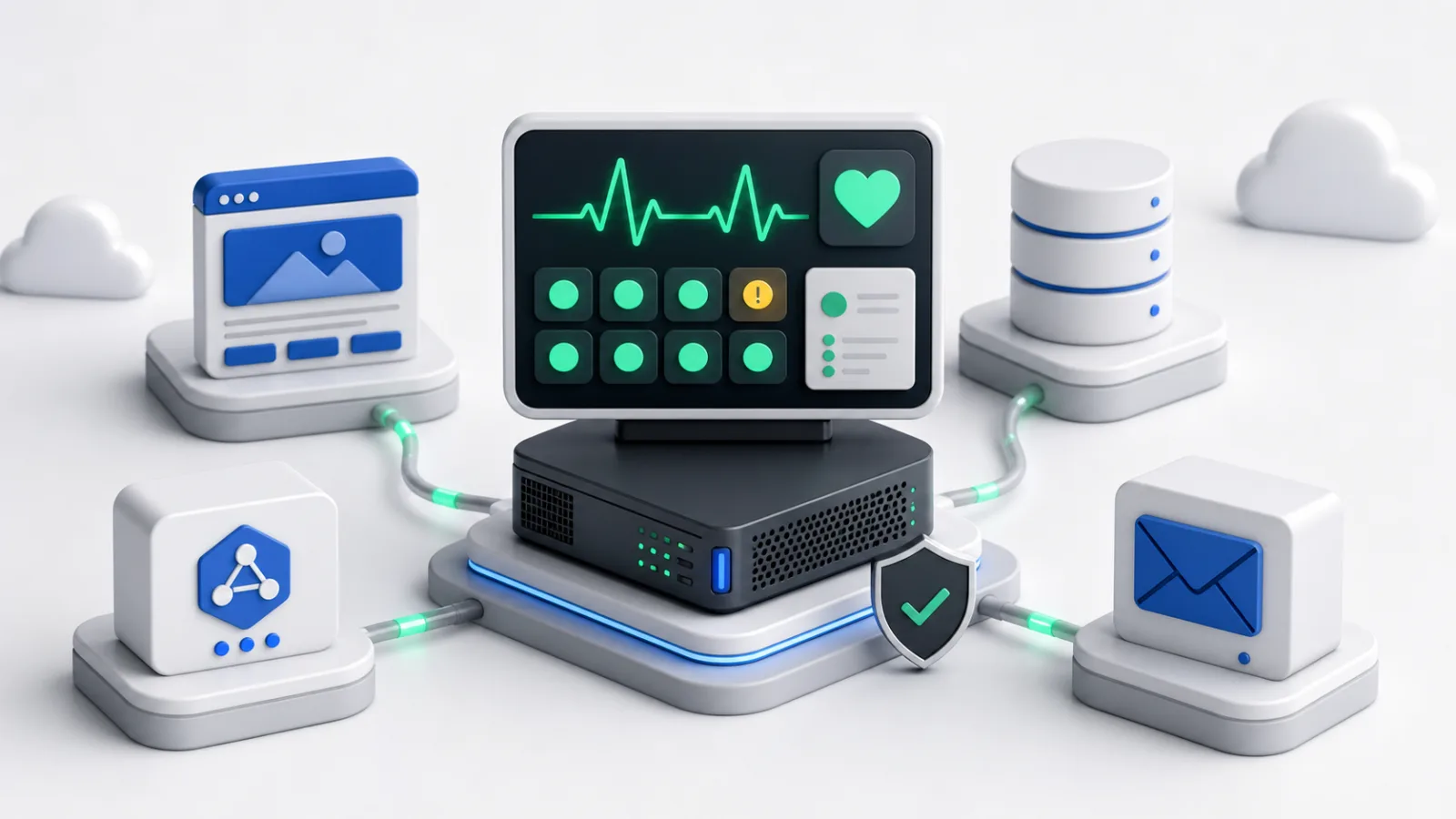
You can self-host Uptime Kuma on a VoyraCloud VPS by selecting the preinstalled application image, creating the first administrator through a private SSH tunnel, and then adding monitors for the services you operate. The image provides a persistent Uptime Kuma starting point, while public access, trusted HTTPS, notifications, backups, updates, capacity planning, and incident response remain under your control.
TL;DR
- The VoyraCloud Uptime Kuma application image provides a preinstalled monitoring dashboard on Cloud VPS and Residential IP VPS.
- Port
3001is bound to127.0.0.1by default, so create the first administrator through an SSH tunnel instead of exposing an uninitialized setup page to the internet. - Uptime Kuma supports HTTP, HTTPS, TCP, ping, DNS, WebSocket, push, keyword, and JSON query monitors, among other monitor types documented by the project.
- Public dashboard or status-page access requires your own domain, a reverse proxy that supports WebSocket upgrades, and browser-trusted HTTPS.
- Configuration, users, monitoring history, notifications, and status pages are stored under
/app/dataon local persistent storage. Reboot persistence is not a backup. - A 20-monitor, 60-second-interval workload is the image’s initial validation profile, not an unlimited-monitor guarantee or a substitute for measuring your own workload.
- Monitoring from the same VPS has an important blind spot: if that VPS, its region, or its network path fails, Uptime Kuma may be unable to send the alert.
What Is Uptime Kuma?
Uptime Kuma is an open-source, self-hosted monitoring application for checking websites, APIs, network services, and other reachable endpoints from a dashboard you control. It records check results and response information, presents service history, and can send notifications through integrations configured by the administrator.
The official Uptime Kuma project lists support for monitor types such as HTTP(S), TCP, HTTP(S) keyword, HTTP(S) JSON query, WebSocket, ping, DNS record, push, and Docker container monitoring. It also provides multiple status pages, certificate information, ping charts, two-factor authentication, proxy support, and a broad range of notification integrations.
Self-hosting is useful when you want:
- A monitoring dashboard under your own server administration.
- Control over monitor configuration, users, history, and status pages.
- A simple way to check several websites, APIs, or network services.
- The option to connect notification providers you already use.
- A monitoring tool that can run continuously on a small VPS.
Uptime Kuma is not a managed monitoring service when deployed this way. You own the VPS, access controls, upgrades, backups, notification credentials, and response process. You must also decide whether one monitoring location provides enough visibility for the services that matter to you.
How Do You Start with the VoyraCloud Application Image?
The fastest way to self-host Uptime Kuma is to create a supported VoyraCloud VPS with the application image and complete the first setup through a local SSH tunnel. You do not need to install Uptime Kuma manually, but you must securely create the administrator before configuring monitors.
- Open the VoyraCloud page for Uptime Kuma and continue to the VPS purchase flow.
- Select an eligible Cloud VPS or Residential IP VPS plan, then choose any region currently offered by that product.
- Confirm that Uptime Kuma is selected in the Images section, then create the VPS.
- Wait until the VPS resource and application are ready.
- Open the resource details and locate the Application section.
- Copy the displayed SSH tunnel command. It follows this pattern:
ssh -p <ssh-port> -L 3001:127.0.0.1:3001 <ssh-user>@<server-ip>7. Keep that SSH session open and browse to:
http://127.0.0.1:30018. Complete the official Uptime Kuma setup page and create a unique administrator username and a strong password.
9. Sign in, create one test monitor, and confirm that checks appear in the dashboard.
10. Restart the VPS once and verify that Uptime Kuma returns automatically and that the account, monitor, and history remain available.
The browser address is local, but the application runs on the VPS. SSH forwards your local port 3001 through an encrypted connection to 127.0.0.1:3001 on the server. Closing the SSH session closes the tunnel; it does not stop Uptime Kuma.
If your computer already uses local port 3001, choose another local port without changing the remote destination:
ssh -p <ssh-port> -L 33001:127.0.0.1:3001 <ssh-user>@<server-ip>You would then open http://127.0.0.1:33001 in your browser. Keep the remote side as 127.0.0.1:3001.
Use the SSH username and port shown for your own resource rather than assuming root and port 22.
What Does the Application Image Include?
The application image includes a preinstalled, persistent Uptime Kuma instance, but it does not convert the VPS into a managed monitoring service. The following boundary matters when planning production use.
| Delivered by the application image | User-managed or not included |
|---|---|
| Uptime Kuma stable release approved for the image | Automatic application upgrades |
| Cloud VPS or Residential IP VPS operating environment | Managed server administration |
| Service recovery after a normal VPS restart | High availability or automatic failover |
Local-only access on 127.0.0.1:3001 | Public port 3001 exposure |
| Official first-administrator setup flow | Precreated administrator or fixed password |
Persistent local /app/data storage | Automatic off-server backups |
| Monitoring dashboard, history, notifications, and status-page features | Preconfigured third-party notification accounts |
| SSH tunnel instructions in resource details | Domain registration, reverse proxy, or trusted HTTPS |
| User-controlled monitor configuration | Guaranteed detection accuracy or alert delivery |
| Uptime Kuma under its open-source license | VoyraCloud maintenance of Uptime Kuma after delivery |
The image does not include a fixed administrator credential, no-auth mode, notification secrets, a domain, a certificate, or a public management endpoint. That keeps first access private and avoids placing an uninitialized account-creation page directly on the internet.
Which Monitor Types Should You Use?
Choose each Uptime Kuma monitor type according to the layer you need to test, because a successful ping does not prove that a website, API, or application works correctly. A useful monitoring set checks the user-facing layer and selected dependencies rather than relying on one generic heartbeat.
| Monitor type | What it can verify | Important limitation |
|---|---|---|
| HTTP or HTTPS | A URL responds and returns an expected status | A successful response may still contain incorrect content |
| Keyword | A response includes or excludes expected text | Text checks do not validate every business function |
| JSON query | An API response contains an expected value | The query must match the real response structure |
| TCP port | A network service accepts a connection | An open port does not prove the application is healthy |
| Ping | A host responds to ICMP | ICMP may be filtered, and a response does not prove an app works |
| DNS record | A resolver returns the expected record | One resolver view may not represent global propagation |
| WebSocket | A WebSocket endpoint can be reached | It does not validate every message flow |
| Push | A job or remote process reports its own heartbeat | A missing push needs an alert window designed for that job |
| Certificate information | Certificate state and expiration information | Renewal still depends on your certificate process |
For a public website, a practical set might include an HTTPS check, a keyword or JSON check for meaningful content, and a certificate-expiration check. For an internal service reachable from the VPS, a TCP or HTTP check can add infrastructure visibility. For a scheduled job, a push monitor can detect when the expected heartbeat does not arrive.
Avoid creating several monitors that all fail for the same reason and then treating them as independent evidence. Monitor design should reflect real failure modes: DNS, TLS, network reachability, application response, content correctness, and background-job completion.
What Does the 20-Monitor Validation Profile Mean?
The 20-monitor profile is a conservative acceptance workload for the initial image configuration, not a maximum capacity promise. The planned validation uses 20 monitors at 60-second intervals for 24 hours, followed by a VPS restart and a persistence check.
That validation is intended to answer a narrow question: can the eligible entry configuration run a small Uptime Kuma installation without out-of-memory events, database locking, unexpected container restarts, or lost data under a defined workload? It does not prove that the same plan can support:
- Unlimited monitors.
- Very short check intervals.
- Large response bodies or expensive JSON queries.
- Many concurrent users or public status-page visitors.
- Long retention periods without storage growth.
- Heavy notification volume.
- Docker monitoring with access to the host socket.
- Additional applications sharing the same VPS.
Real resource use depends on monitor type, interval, timeout, response size, history retention, notification behavior, dashboard activity, and other software on the server. Begin with a measured set, watch CPU, memory, disk use, database behavior, and check duration, then move to a larger eligible VoyraCloud VPS configuration when the real workload requires it.
Do not interpret the purchase-flow minimum as a universal sizing recommendation. It is an eligibility gate for the validated starting profile.
How Should You Publish Uptime Kuma Securely?
Publish Uptime Kuma through a dedicated domain or subdomain, a WebSocket-capable reverse proxy, and browser-trusted HTTPS while keeping port 3001 bound to localhost. Long-term SSH-tunnel access is also valid when only administrators need the dashboard and no public status page is required.
The official Uptime Kuma reverse-proxy guide explains that the application uses WebSocket and requires the proxy to pass the Upgrade and Connection headers. It also notes that Uptime Kuma does not support being hosted under a normal URL subdirectory such as /uptime-kuma; use a dedicated hostname such as status.example.com.
A typical Nginx location block includes:
location / {
    proxy_pass http://127.0.0.1:3001;
    proxy_http_version 1.1;
    proxy_set_header Host $host;
    proxy_set_header X-Real-IP $remote_addr;
    proxy_set_header X-Forwarded-For $proxy_add_x_forwarded_for;
    proxy_set_header Upgrade $http_upgrade;
    proxy_set_header Connection "upgrade";
}
This snippet only covers the proxy path. You must separately configure the hostname, trusted TLS certificate, certificate renewal, HTTP-to-HTTPS redirect, firewall, and access policy. Verify the current official example for your chosen reverse proxy before applying it.
Use this production checklist:
- Create a DNS record for a dedicated hostname.
- Keep
3001/tcpunavailable from the public internet. - Configure the reverse proxy to reach
127.0.0.1:3001. - Preserve WebSocket upgrade headers.
- Install a certificate trusted by normal browsers.
- Redirect plain HTTP to HTTPS.
- Confirm that the dashboard updates without WebSocket errors.
- Test sign-in, sign-out, monitor updates, and status pages.
- Restrict the administration hostname when public access is unnecessary.
- Review trusted-proxy settings only after the proxy and firewall path are correct.
Trusted HTTPS protects credentials and session traffic in transit, but it does not secure a weak administrator password or an outdated server. Keep SSH hardened, limit privileges, enable two-factor authentication where appropriate, and maintain the operating system and reverse proxy.
How Do Notifications and Status Pages Work?
Notifications and status pages are features you configure after initialization; the image does not include third-party accounts, credentials, delivery guarantees, or a public domain. Uptime Kuma supports many notification methods, but each provider has its own account, availability, pricing, limits, and delivery behavior.
The official notification-method documentation provides provider-specific setup references. Add only integrations your team owns, store credentials carefully, and send a test notification before depending on them. A successful test proves that one message worked at that moment; it does not guarantee future delivery.
For each important monitor:
- Decide who should receive an alert.
- Set a check interval and retry policy that fits the service.
- Configure one or more user-owned notification methods.
- Test failure and recovery notifications.
- Confirm that an on-call person can act on the message.
- Document what to do when the monitor reports a failure.
Status pages let you share selected monitor states and incident information. They do not need to expose every internal monitor. Group services in a way customers understand, avoid publishing sensitive hostnames or internal topology, and use your own domain and secure proxy path for public access.
Do not assume every notification integration is free. Some services may charge, limit usage, change their APIs, or require additional configuration. VoyraCloud does not provide those third-party accounts and cannot guarantee that a provider accepts or delivers a message.
How Is Uptime Kuma Data Stored and Backed Up?
Uptime Kuma keeps its application state under /app/data, which must remain on persistent local storage and must be backed up separately from the running VPS. The official installation guidance requires filesystem support for POSIX file locks and warns against file-locking problems commonly associated with NFS.
The persistent data includes the database and application state needed for items such as:
- Administrator and user settings.
- Monitor definitions.
- Monitoring history.
- Notification configuration.
- Status pages.
- Maintenance schedules.
- Other instance settings.
A normal VPS reboot should preserve that data and restart the application. That behavior is persistence, not disaster recovery. Accidental deletion, database corruption, compromised credentials, a failed upgrade, storage loss, or deletion of the VPS can still remove the only copy.
A safer backup routine is:
- Identify the actual local Docker volume or local directory mapped to
/app/data. - Schedule backups to a destination outside the VPS.
- Quiesce or stop Uptime Kuma when the chosen backup method requires a consistent database copy.
- Copy the complete data set, not only an exported monitor list.
- Encrypt and protect the backup because it may contain operational details and notification credentials.
- Retain more than one recovery point.
- Restore to a separate test instance and verify accounts, monitors, history, notifications, and status pages.
- Record the application version associated with the backup.
Do not place the live /app/data directory on NFS for this image. A remote backup destination is appropriate for copied backup artifacts; it is different from running the active database directly on a network filesystem.
What Is the Same-Server Monitoring Blind Spot?
A Uptime Kuma instance cannot reliably report failures that also remove its own compute, network, or notification path. If Uptime Kuma runs on the same VPS as the website it monitors, a VPS outage can stop both the website and the monitor before the alert is sent.
Even when the monitored service is on another server, one Uptime Kuma location still observes it from one network and one region. A local ISP route, regional network issue, DNS resolver difference, or firewall policy can affect that view without representing every user’s experience.
Use the deployment according to the consequence:
| Monitoring need | Appropriate approach |
|---|---|
| Convenient dashboard for small services | One self-hosted Uptime Kuma instance may be sufficient |
| Monitor a service on another VPS | Place Uptime Kuma outside the monitored server’s failure domain when practical |
| Detect regional reachability differences | Use independent checks from multiple locations |
| Alert during failure of the monitoring VPS | Add an external heartbeat or independent monitoring service |
| High-availability monitoring | Design a separate multi-system monitoring architecture |
The application image does not provide distributed monitoring, high availability, or an independent external checker. Treat it as one monitoring point and add independent coverage when missed alerts would have significant business impact.
How Should You Update Uptime Kuma?
Update Uptime Kuma deliberately by checking the official release guidance, backing up /app/data, and validating the new version before relying on it. VoyraCloud does not automatically upgrade customer instances after the VPS is created.
Follow the official Uptime Kuma update guidance that applies to the installed major version and deployment method. Before an update:
- Read the release notes and migration requirements.
- Record the currently running application version.
- Create and verify an off-server backup of
/app/data. - Confirm sufficient free disk space.
- Plan a maintenance window for an important monitoring instance.
- Use a specific approved version rather than an unreviewed floating tag.
- Start the updated instance and review its logs.
- Test administrator sign-in, several monitor types, a notification, a status page, and restart recovery.
- Keep a rollback plan compatible with the database changes described by the release.
Do not assume that reverting the container image is always enough. A major-version migration may change application data, so recovery may require the pre-update data backup as well as the earlier image version.
Operating-system updates, Docker updates, reverse-proxy updates, and certificate renewal are separate responsibilities. A current Uptime Kuma container does not make the rest of the server current.
Common Mistakes to Avoid
Most Uptime Kuma deployment mistakes come from exposing initialization, overestimating one monitoring location, or treating persistent storage as a complete operations plan. Avoid these errors:
- Publishing port
3001before creating the administrator. Keep it on localhost and use the SSH tunnel. - Leaving the dashboard on public HTTP. Use trusted HTTPS for any public access.
- Forgetting WebSocket proxy headers. The interface may load but fail to update correctly.
- Hosting under a subdirectory. Use a dedicated domain or subdomain.
- Running active
/app/dataon NFS. Keep it on compatible local storage. - Calling reboot persistence a backup. Store tested copies outside the VPS.
- Assuming a status page creates independent monitoring. It is presented by the same Uptime Kuma instance.
- Monitoring a VPS only from itself. A full server failure can silence both the service and its monitor.
- Treating 20 monitors as a guaranteed maximum or minimum. It is a defined validation workload, not a universal capacity result.
- Expecting notification delivery to be guaranteed. Provider availability, credentials, quotas, routing, and the monitoring host all matter.
- Enabling every integration without an owner. Configure only channels that someone tests and responds to.
- Updating without a restorable data copy. Back up the complete application data before changing versions.
FAQ
Can I self-host Uptime Kuma without installing it manually?
Yes. The VoyraCloud application image provides a preinstalled Uptime Kuma instance on an eligible Cloud VPS or Residential IP VPS. You still create the first administrator, add monitors, configure notifications, and manage security, updates, backups, and public access.
Why is http://127.0.0.1:3001 shown instead of the server IP?
The local address prevents the uninitialized administrator setup page from being exposed directly to the internet. Establish the SSH tunnel from your computer, keep the session open, and then browse to the local URL. The tunnel securely forwards your browser connection to Uptime Kuma on the VPS.
Can I expose port 3001 directly to the internet?
Direct exposure is not the recommended production path. Keep the service bound to localhost and use a reverse proxy with a dedicated hostname, WebSocket support, trusted HTTPS, and an appropriate access policy. The application image does not configure that public path automatically.
Does Uptime Kuma include free SMS, email, Slack, or other notification services?
No. Uptime Kuma can integrate with many notification providers, but you supply and manage the provider account and credentials. Third-party pricing, quotas, availability, and message delivery are outside the application image and may change.
Is a 1 GB VPS enough for Uptime Kuma?
It may be an eligible starting point only after the defined image validation passes, but real capacity depends on your workload. The initial profile uses 20 monitors at 60-second intervals for 24 hours. More monitors, shorter intervals, larger responses, longer history, extra services, or heavier dashboard use may require more memory, CPU, and storage.
Does Uptime Kuma provide high availability or external monitoring?
No. This image provides one self-hosted Uptime Kuma instance on one VPS. High availability, distributed checks, and independent external monitoring require additional systems and architecture that are not included.
Will Uptime Kuma alert me if its own VPS fails?
It may not, because the process that sends the alert can fail with the VPS or its network path. Use an external heartbeat or an independent monitoring location when detecting failure of the Uptime Kuma host is important.
What must I back up?
Back up the complete persistent data mapped to /app/data and store the recovery copy outside the VPS. Protect the backup because it can contain monitoring configuration and notification secrets, and test a restore instead of assuming that a copied file set is usable.
Does VoyraCloud automatically update Uptime Kuma?
No. New VPS resources receive the application version approved for the image at creation time, while later updates are customer-managed. Review official upgrade instructions, back up /app/data, and test the updated instance before depending on it.
Conclusion
Self-host Uptime Kuma when you want a straightforward monitoring dashboard, configurable checks, notifications, and status pages under your own administration. Start privately through the SSH tunnel, design monitors around real failure modes, keep /app/data on persistent local storage, back it up outside the VPS, and add a WebSocket-capable reverse proxy with trusted HTTPS only when public access is required.
One instance is useful for many small monitoring needs, but it remains one observation point with one failure domain. Add independent monitoring when the Uptime Kuma host itself, regional reachability, or alert continuity must also be covered.
Use the VoyraCloud application image for Uptime Kuma to begin from a preinstalled VoyraCloud VPS environment while keeping access, data, notifications, and operations under your control.