
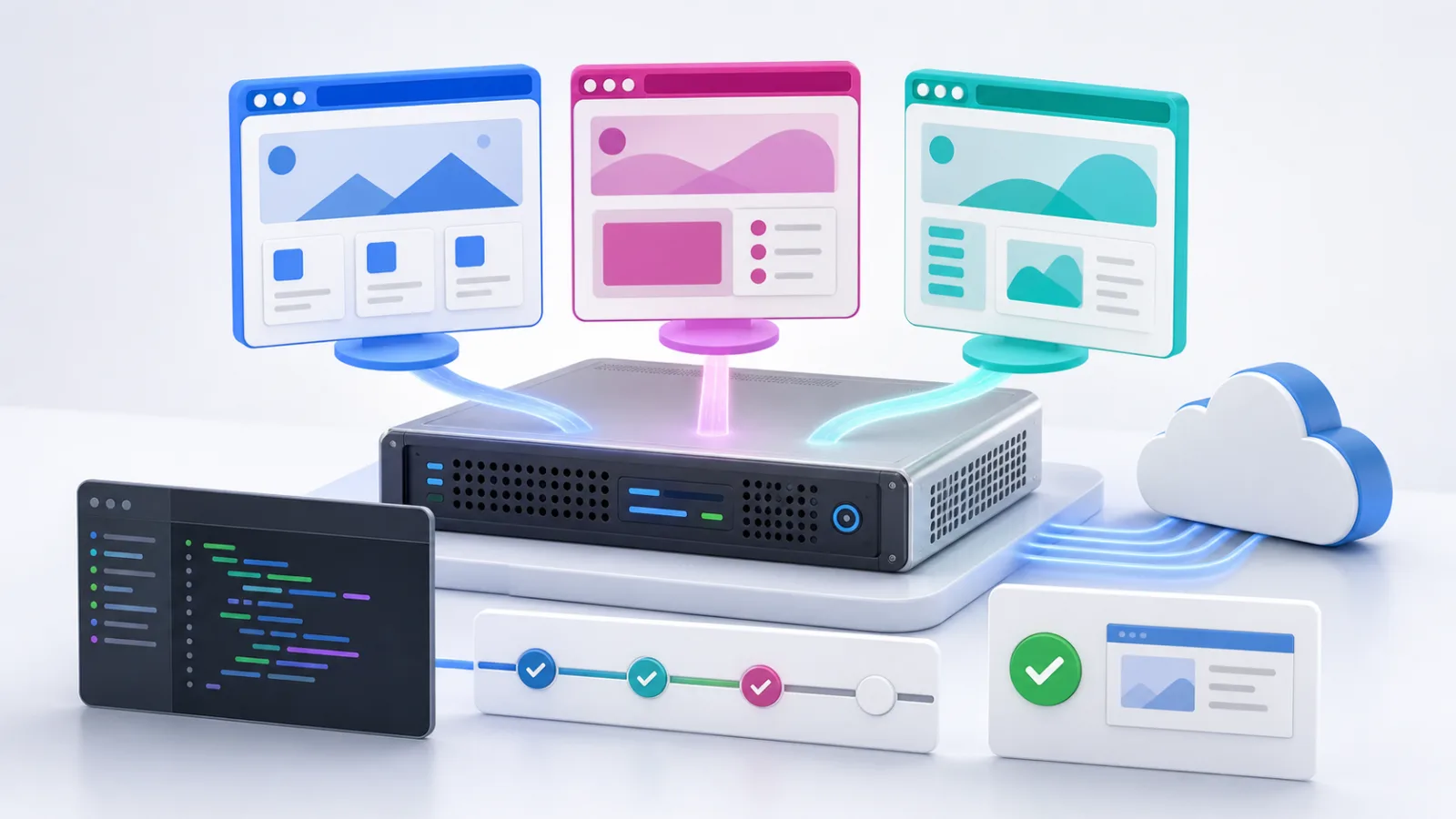
Deploy Playwright on VPS infrastructure when you need a persistent Linux environment for end-to-end testing, scheduled browser checks, screenshots, and authorized browser workflows. The VoyraCloud Playwright application image provides Node.js, Playwright, Chromium, and the required Linux browser dependencies. You connect through SSH, add your own project, and run headless Chromium without exposing a browser-control service to the public internet.
TL;DR
- The VoyraCloud Playwright image is an SSH-first runtime, not a hosted browser dashboard or public remote-browser API.
- Node.js, Playwright, Chromium, and Linux browser dependencies are preinstalled on Ubuntu, so you can begin with the delivered example and then add your own project.
- The image does not open a Playwright-specific public port. Reports and traces stay on the VPS unless you deliberately transfer or serve them.
- Keep your project’s Playwright package on the same exact version as the delivered browser binaries. A version mismatch can prevent Playwright from finding or launching Chromium.
- Run browser jobs as a non-root user with the Chromium sandbox available. Do not store third-party credentials directly in source files or reports.
- The starting resource gate follows the available product plans: 4 vCPU, 4 GB RAM, and 80 GB storage on Cloud VPS, or 2 vCPU, 4 GB RAM, and 60 GB storage on Residential IP VPS, with a 2 GB shared-memory environment for one validated Chromium session. It is not a fixed-concurrency promise.
- Project files and saved artifacts persist across a normal VPS reboot. In-memory browser sessions, temporary contexts, and unsaved state do not.
What Does the Playwright Application Image Include?
The Playwright application image includes the browser runtime needed to start authorized automation work, while your project code and operating practices remain under your control. It removes repetitive operating-system preparation but does not provide a managed automation service.
| Delivered by the image | User-managed or not included |
|---|---|
| Ubuntu Linux runtime | Your application and test code |
| Compatible Node.js environment | Project-specific npm dependencies |
| A fixed stable Playwright release | Automatic Playwright upgrades |
| Matching Chromium browser binary | Firefox or WebKit unless you install and validate them |
| Required Linux browser dependencies | Third-party accounts, cookies, API keys, or target credentials |
| Headless browser execution through SSH | Public browser-control endpoint or Web dashboard |
| 2 GB shared-memory environment validated for the starting gate | Guaranteed parallel-browser capacity |
| Persistent VPS storage | Automatic off-server backup |
| A delivered example and health check | Custom script development or debugging by VoyraCloud |
The resource details show the Playwright version delivered when the VPS was created. That value describes the original image state; it does not change automatically if you later update your own project. Keep your dependency lockfile and operational notes as the source of truth for subsequent user-managed changes.
Quick Start: How to Deploy Playwright on VPS
The quickest path is to create a VPS with the Playwright image, connect over SSH, verify the delivered runtime, and run one Chromium test with a single worker. There is no browser dashboard to open after provisioning.
- Open the VoyraCloud Playwright page and continue to the purchase flow.
- Select an eligible Cloud VPS or Residential IP VPS plan, then choose any region currently offered by that product.
- Confirm that Playwright is selected in the Images section, create the resource, and wait until provisioning completes.
- Open the resource details and use the displayed SSH connection information.
- After login, check the delivered Node.js and Playwright versions:
node --version
npx playwright --version- Run the example delivered with the image before changing dependencies. The example should start Chromium, open a test page, make an assertion, and write a screenshot.
- Create or transfer your own project only after the delivered health check succeeds.
- Begin with one Chromium worker, inspect memory and disk use, and increase workload only after measuring the real project.
The image does not require a Playwright-specific access URL. SSH is the management path, and no permanent remote-control port is enabled by default.
How Do You Create a Playwright Project on the VPS?
Create a normal Node.js project and pin its Playwright dependency to the exact version shown by the delivered runtime. Playwright packages and browser binaries move together, so installing an unrelated latest package can break an otherwise healthy image.
Start in a directory owned by your non-root user:
mkdir -p ~/playwright-project
cd ~/playwright-project
npm init -y
Check the delivered version again:
npx playwright --versionInstall the same exact version in the project. Replace <same-version> with the number printed by the previous command:
npm install --save-dev @playwright/test@<same-version>Create homepage.spec.js:
const { test, expect } = require('@playwright/test');

test('example page is reachable', async ({ page }) => {
  await page.goto('https://example.com/', {
    waitUntil: 'domcontentloaded',
  });

  await expect(page).toHaveTitle(/Example Domain/);
  await page.screenshot({
    path: 'artifacts/example-homepage.png',
    fullPage: true,
  });
});
Create a small configuration in playwright.config.js:
const { defineConfig, devices } = require('@playwright/test');

module.exports = defineConfig({
  testDir: '.',
  outputDir: 'test-results',
  workers: 1,
  reporter: [['list'], ['html', { open: 'never' }]],
  use: {
    trace: 'retain-on-failure',
    screenshot: 'only-on-failure',
    ...devices['Desktop Chrome'],
  },
  projects: [
    {
      name: 'chromium',
      use: { browserName: 'chromium' },
    },
  ],
});
Create the screenshot directory and run the test:
mkdir -p artifacts
npx playwright test homepage.spec.js --project=chromium --workers=1
This example deliberately uses one Chromium worker and a neutral public example page. Replace the URL only with a website you own, operate, or are authorized to test. The image does not grant permission to automate a third-party service.
How Do Reports and Traces Work on a Headless VPS?
Playwright reports and traces are files generated by your project, so they can be saved on the VPS and reviewed without opening a permanent public service. They are especially useful when a test fails only in the server environment.
The example configuration writes:
- Terminal results from the
listreporter. - An HTML report under
playwright-report/. - Test attachments and failure output under
test-results/. - A trace for failed tests because
traceis set toretain-on-failure. - Screenshots under the configured artifact locations.
To view the HTML report safely, start its temporary server on the loopback interface:
npx playwright show-report --host 127.0.0.1 --port 9323On your own computer, create an SSH tunnel using the connection values from the resource details:
ssh -L 9323:127.0.0.1:9323 <ssh-user>@<server-ip>Then open http://127.0.0.1:9323 on your local computer. Stop the report process when you finish. Do not bind the report viewer to 0.0.0.0 or expose it directly to the internet; reports can contain page text, URLs, screenshots, headers, error messages, and other sensitive test evidence.
For a saved trace, use Playwright’s trace viewer:
npx playwright show-trace test-results/<trace-file>.zipIf the viewer starts a local HTTP process, use the same loopback-and-SSH-tunnel model. You can also transfer a trace to a trusted workstation and inspect it with official tooling. Treat trace archives as potentially sensitive because they may contain DOM snapshots, network information, and screenshots.
Why Must Playwright and Chromium Versions Match?
Playwright expects browser binaries built for its own release, so the package and delivered Chromium revision must stay aligned. The official Playwright documentation recommends pinning exact versions and warns that mismatched environments may be unable to locate browser executables.
| Change | Safe approach | Risk to avoid |
|---|---|---|
| Add Playwright to a new project | Install the exact delivered version | Installing an unrelated latest version |
| Update the Playwright package | Update browser binaries in the same maintenance window | Updating npm dependencies only |
| Change Node.js | Confirm the target Playwright release supports it | Upgrading Node.js without testing |
| Add Firefox or WebKit | Install and validate the matching browser and dependencies | Assuming every browser is preinstalled |
| Rebuild a lockfile | Review the resolved Playwright version | Letting a broad semver range drift |
| Roll back | Restore package lock, browser binaries, and project together | Rolling back only one layer |
Before updating, record the working versions:
node --version
npx playwright --version
npm ls @playwright/test
Then back up your project and lockfile. Follow the official Playwright update procedure, which updates both the package and browser dependencies. Run the delivered health-check pattern and your own smoke tests after the change. VoyraCloud does not automatically upgrade existing Playwright environments or guarantee compatibility for user-managed combinations.
How Should Playwright Run Securely?
Playwright should run as a dedicated non-root user with the Chromium sandbox available, minimal credentials, and no unnecessary public listener. A browser processes complex content from the pages it opens, so it should not receive more host privilege than the workload requires.
Use these operating rules:
- Run project commands from a non-root account. Do not use
sudo npx playwright test. - Keep Chromium sandboxing enabled instead of relying on root execution that disables it.
- Store secrets in a restricted environment file or secret manager, not in test source, screenshots, reports, or shell history.
- Limit target domains to systems you own or have permission to test.
- Stop on CAPTCHAs, access-control challenges, account warnings, payment gates, or repeated authorization failures.
- Keep SSH access protected with strong authentication and current operating-system security updates.
- Do not expose the HTML report, trace viewer, debugging endpoints, or a custom browser server to the public internet.
- Review generated artifacts before sharing them because page content and test data can appear in screenshots and traces.
The official Playwright Docker guidance makes the same privilege distinction: root may be acceptable for trusted end-to-end test code in a contained environment, while separate users and sandbox controls are recommended when browser content is not fully trusted. The VoyraCloud image uses an SSH-first native runtime; if you later place your project in a container, you must configure that container’s user, sandbox, init process, and shared memory yourself.
What Does the 2 GB Shared-Memory Requirement Mean?
The 2 GB shared-memory requirement gives Chromium room for one validated starting workload, but it does not guarantee a particular number of parallel pages or browsers. Chromium uses shared memory for renderer processes, and insufficient space can cause crashes that look like random test failures.
Check the available shared-memory filesystem:
df -h /dev/shmThe VoyraCloud image acceptance gate validates one headless Chromium session on the starting configuration with a 2 GB shared-memory environment. Your actual demand depends on page complexity, video and trace capture, browser contexts, extensions, downloads, test data, and the number of simultaneous workers.
If you create your own Docker deployment later, the host setting does not automatically guarantee that a new container receives the same allowance. Configure the container based on the official Chromium guidance for Playwright, then test it independently.
How Much VPS Capacity Does Playwright Need?
Playwright capacity depends on browser count, page complexity, artifacts, and concurrency, so the minimum is only a validated entry gate for a narrow workload. The initial purchase gate is 4 vCPU, 4 GB RAM, and 80 GB storage on Cloud VPS, or 2 vCPU, 4 GB RAM, and 60 GB storage on Residential IP VPS, after the corresponding plan passes regional acceptance tests.
| Workload | Capacity guidance |
|---|---|
| One scheduled Chromium smoke test | Suitable starting case for the entry gate |
| A small serial end-to-end suite | Start with one worker and measure |
| Screenshot-heavy tests | Watch disk growth and memory use |
| Video and trace retention | Plan additional storage and cleanup |
| Multiple parallel workers | Requires workload-specific testing and likely more resources |
| Multiple browsers or large pages | Requires workload-specific testing |
| Long-running automation service | Add supervision, logging, monitoring, and measured capacity |
Playwright Test can run files in parallel, but a default worker count is not a capacity promise. Start with --workers=1, observe CPU, memory, shared memory, test duration, and disk use, then increase gradually. A larger plan may be required before enabling parallel projects, videos, or large trace retention.
What Persists After a Reboot?
Files written to persistent VPS storage remain after a normal reboot, while live browser state in memory does not. Save every artifact or state file that matters before restarting the server.
Persistent files can include:
- Your Node.js project and lockfile.
- Playwright configuration and test source.
- Screenshots, videos, HTML reports, and trace archives.
- Deliberately saved storage-state files.
- Your own logs and process configuration.
Do not expect a reboot to preserve:
- A running Chromium process.
- Open pages or in-memory browser contexts.
- Unsaved cookies, local storage, or JavaScript state.
- Temporary files that your project deletes or writes outside persistent paths.
- A job that was running without process supervision and restart handling.
Persistence is not backup. If a report, project, or state file matters to the business, copy it to an off-server destination with appropriate encryption and retention. Avoid backing up authentication state unless it is required, protected, and subject to a clear rotation policy.
Cloud VPS or Residential IP VPS for Playwright?
Cloud VPS is the primary choice for general Playwright development, QA, and authorized automation, while Residential IP VPS is relevant only when a stable residential network origin is part of a legitimate test requirement.
Use Cloud VPS for:
- End-to-end tests against applications you own.
- Scheduled production smoke checks.
- Internal browser workflows.
- Screenshot generation and regression testing.
- Automation where datacenter network identity is acceptable.
A Residential IP VPS may be relevant for permissioned regional QA or monitoring where the same stable residential network identity must be maintained across runs. It is not a promise to bypass anti-automation controls, solve CAPTCHAs, protect accounts, or reach every target. For a deeper discussion of network-related failures, read Why Playwright Gets Blocked on VPS.
Pre-Production Checklist
A Playwright VPS is ready for regular use only after the runtime, security, resource behavior, artifacts, and recovery path have been tested with your own project.
- Confirm
node --versionandnpx playwright --version. - Run the delivered Chromium health check without modifying the environment.
- Pin the same Playwright version in your project lockfile.
- Run as a non-root user and confirm Chromium launches with its sandbox.
- Start with one Chromium worker and verify the 2 GB shared-memory environment.
- Save a screenshot, HTML report, and failure trace.
- View reports through a loopback listener and SSH tunnel.
- Restart the VPS and rerun the smoke test.
- Confirm required project files and artifacts persisted.
- Configure off-server backups for business-critical code and data.
- Protect credentials and remove secrets from reports before sharing.
- Document allowed targets, rate limits, and stop conditions.
FAQ
Does the Playwright image include a Web dashboard?
No, the Playwright image does not include a Web dashboard or public browser-control endpoint. You connect over SSH and run your own Node.js or Playwright Test project. Temporary report viewers should bind to 127.0.0.1 and be accessed through an SSH tunnel.
Which browser is included?
The image includes Chromium matched to the delivered stable Playwright release. Firefox and WebKit are not part of the stated default delivery. You may install additional matching browsers yourself, but you must validate their dependencies and resource use.
Can I update Playwright with npm?
Yes, but update the Playwright package and its browser binaries together, then retest the environment. Save the working version and lockfile first. Existing VoyraCloud resources are not automatically upgraded after creation.
How many Playwright workers can this VPS run?
There is no fixed worker or concurrency guarantee. The starting gate validates one Chromium session with 2 GB shared memory on either Cloud VPS at 4 vCPU, 4 GB RAM, and 80 GB storage, or Residential IP VPS at 2 vCPU, 4 GB RAM, and 60 GB storage. Parallel capacity depends on your pages, artifacts, code, and runtime behavior.
Are reports and traces available after a reboot?
Saved report and trace files persist when they are written to VPS storage, but active sessions and unsaved state do not. Persistence also does not replace an off-server backup.
Should I run Playwright as root?
No, use a non-root user for normal browser jobs and keep Chromium sandboxing available. Root execution increases the impact of a browser or test-code compromise and can disable the Chromium sandbox in common configurations.
Does the image include proxies, cookies, or website accounts?
No, the image includes no proxy service, cookies, API keys, website accounts, or third-party credentials. You are responsible for secrets, permissions, target policies, and applicable law.
Can Playwright bypass CAPTCHAs or anti-bot controls?
No such capability or outcome is included or promised. A CAPTCHA, access restriction, or repeated authorization failure should stop the workflow for review. Use official APIs or written authorization where available.
Conclusion
To deploy Playwright on VPS reliably, start with the preinstalled runtime, pin your project to the delivered Playwright version, run one sandboxed Chromium worker, and preserve only the files you intentionally save. The VoyraCloud image shortens environment setup while keeping SSH access, project code, credentials, updates, capacity planning, and backups under your control.
Use the VoyraCloud Playwright application image for an SSH-first browser automation runtime with no Playwright-specific public port enabled by default.