
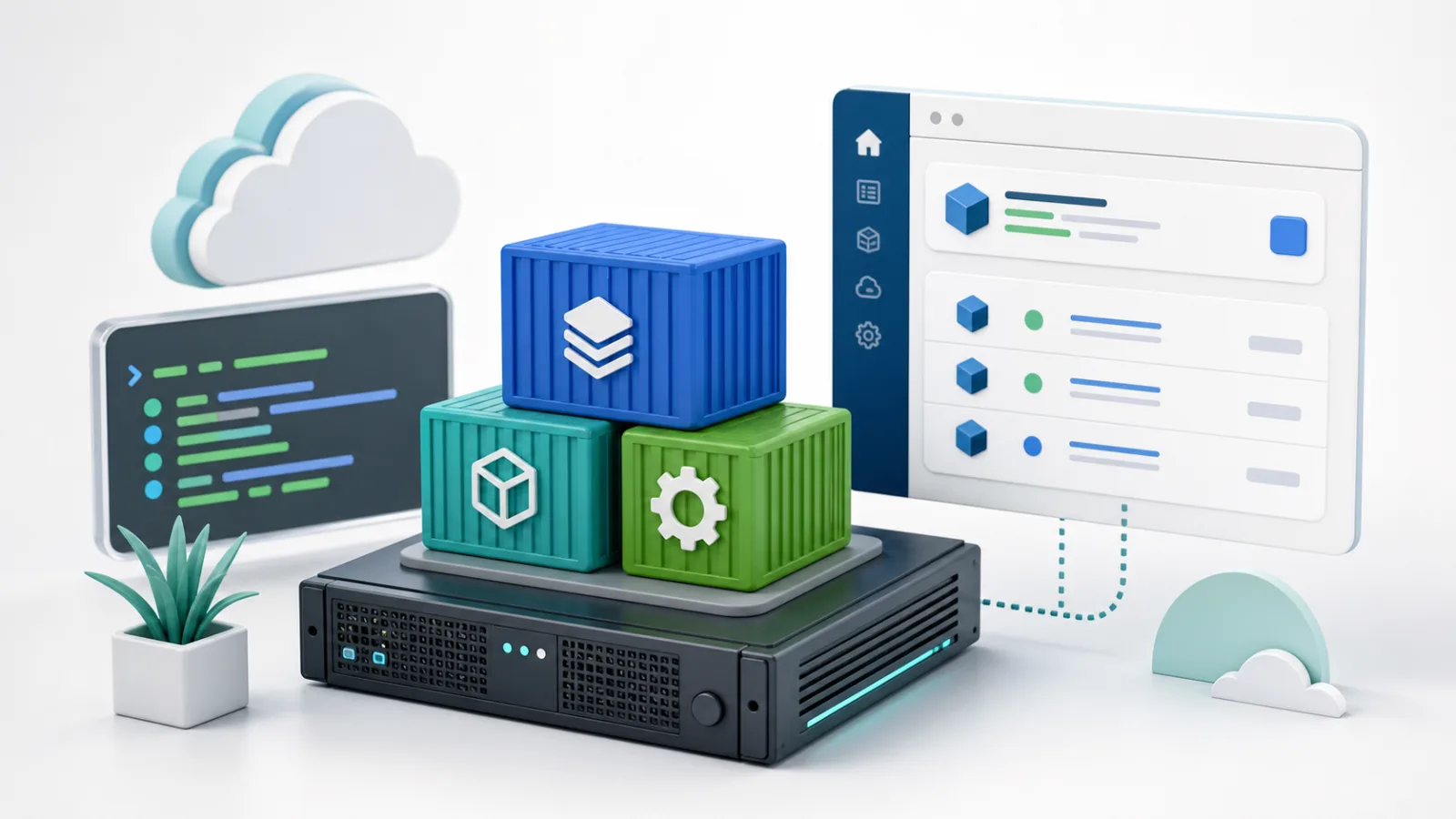
Docker on VPS with Portainer gives you a preinstalled Linux container runtime, Docker Compose, and a web interface for managing a self-hosted server. The VoyraCloud application image removes the initial software installation work, but you still control the containers, published ports, application data, updates, security, backups, and capacity of the VPS.
TL;DR
- The VoyraCloud Docker + Portainer image includes Docker Engine, the Docker CLI, containerd, Buildx, the Docker Compose plugin, and Portainer Community Edition on Ubuntu 24.04 LTS.
- Portainer is not exposed directly to the public internet. Copy the SSH Tunnel command from the VPS resource page, keep the tunnel open, and visit
https://127.0.0.1:9443. - Create the first Portainer administrator yourself. VoyraCloud does not provide a default username or password.
- A browser warning is expected on the local Portainer URL because its initial HTTPS certificate is self-signed. Browser-trusted HTTPS and a public management domain are not included.
- Portainer accesses the Docker socket and can control the host. Treat Portainer administrator access and Docker group membership as root-level privileges.
- Docker-published ports can bypass expected UFW behavior. Review every Compose
portsentry and enforce container traffic policy through the Docker-supported firewall path. - Docker volumes, Compose files, application databases, and Portainer configuration need separate backup coverage. A Portainer backup alone does not back up your containers or application data.
- The minimum eligible plan runs the included tools and a light validation workload; it does not guarantee that an arbitrary application stack will fit.
What Is the VoyraCloud Docker + Portainer Image?
The VoyraCloud Docker + Portainer image is a self-managed Ubuntu VPS prepared with the core tools needed to run and operate containers. It is intended for developers and small teams that want a repeatable single-server container environment without installing Docker and Portainer from a blank operating system.
Docker Engine runs containers on the server. Docker Compose describes multi-container applications in a YAML file. Portainer Community Edition, or Portainer CE, provides a browser-based interface for viewing and managing the local Docker environment.
This is still a VPS, not a managed container platform. You receive root-level server control and persistent storage, while application architecture and operations remain your responsibility.
| Layer | What It Does | Who Manages It After Delivery |
|---|---|---|
| Ubuntu host | Provides the operating system, storage, networking, and system services | You |
| Docker Engine | Runs images, containers, networks, and volumes | You |
| Docker Compose plugin | Defines and operates multi-container projects | You |
| Portainer CE | Manages the local Docker environment through a web UI | You |
| VoyraCloud application image | Provides the tested starting environment | VoyraCloud at resource creation |
| Your application stack | Contains your websites, APIs, databases, workers, and other services | You |
The image works well for a single-host application stack, an internal development service, a small API, an automation system, or a group of lightweight services. For example, you can use Compose to define an application, database, and internal network, then use Portainer to inspect containers and logs. Our self-hosted n8n guide shows the kind of persistent application workload that commonly runs in containers.
What Does the Image Include and Exclude?
The image includes the open-source server components needed for local Docker management, but it does not include a business application, managed operations, or paid container-management features. Knowing this boundary prevents surprises after deployment.
| Included | Not Included |
|---|---|
| Ubuntu 24.04 LTS | Docker Desktop |
| Docker Engine and Docker CLI | Portainer Business Edition |
| containerd and Buildx plugin | Business Edition licensing or features |
| Docker Compose plugin | A sample business Stack or predeployed application |
| Portainer Community Edition | Registry, Git, cloud, or third-party credentials |
| Local Docker environment in Portainer | A public Docker daemon TCP endpoint |
| Persistent Docker and Portainer storage | Automatic application backups |
| Restart configuration for Docker and Portainer | Automatic trusted HTTPS or a domain |
| Secure Portainer access through an SSH Tunnel | Automatic software or container-image updates |
| Versions recorded when the VPS is created | Commercial Docker or Portainer support |
The delivered versions are the stable combination tested when your resource is created. If you later upgrade Docker, Compose, or Portainer yourself, the version displayed in the VoyraCloud resource information does not become a live software inventory.
The image also does not provide high availability, Kubernetes, Docker Swarm clustering, or multi-node orchestration. Portainer CE may expose controls for technologies beyond a local standalone engine, but their presence in the upstream interface does not mean VoyraCloud has configured or supports those environments.
How Do You Start from the VoyraCloud Application Image?
The correct start path is to create an eligible VPS with the Docker + Portainer image, open its Application details, and initialize Portainer through an SSH Tunnel. You do not need to install Docker or run a Portainer installation command before reaching the first administrator screen.
1. Choose the Docker + Portainer Image
Choose the image from an eligible VoyraCloud Linux VPS purchase flow and size the server for the applications you intend to run. VoyraCloud Cloud VPS is the general-purpose choice for websites, APIs, developer tools, and self-hosted services.
A Residential IP VPS is an alternative only when a legitimate containerized workload specifically benefits from a stable residential network identity. The residential network does not make Docker faster, more secure, or easier to operate.
2. Wait for Resource Creation
Wait until the resource is available before attempting Portainer access. A successful image deployment means the Docker daemon, Docker Compose plugin, and Portainer CE passed the image health checks. It does not mean an application Stack has been deployed.
No example business container, registry account, Git credential, or Portainer administrator is created for you. The environment starts clean so that you can define its purpose.
3. Copy the SSH Tunnel Command
Open the VPS resource page and copy the SSH Tunnel command shown in the Application section. It uses the actual SSH username, SSH port, and server address associated with your resource.
The command follows this structure:
ssh -p {ssh_port} -L 9443:127.0.0.1:9443 {ssh_user}@{server_ip}Run it from your own computer and keep the terminal session open. The tunnel maps your local port 9443 to the Portainer HTTPS service bound to the server loopback interface. Closing the SSH session closes the tunnel.
Do not replace the loopback binding with a public 9443 exposure as a shortcut. Portainer can control containers, networks, volumes, images, and Stacks on the host, so its management surface should be treated as a high-privilege server interface.
4. Open the Local Portainer URL
Visit https://127.0.0.1:9443 in your local browser after the tunnel is connected. You may see a certificate warning because Portainer initially uses a self-signed HTTPS certificate. The connection is carried inside your authenticated SSH tunnel, but the certificate is not signed by a browser-trusted public certificate authority.
Review the certificate warning and confirm that you opened the exact local URL through the tunnel. The application image does not include a domain name or automatic public HTTPS.
5. Create the First Administrator
Create your own Portainer administrator on the official first-use screen and use a unique strong password. VoyraCloud does not precreate, store, or deliver a default Portainer account.
Complete the initial setup promptly after starting Portainer. Portainer uses a security timeout for an uninitialized instance. If the setup screen has stopped listening, connect to the VPS through SSH and run the recovery command shown in the resource details:
sudo docker restart portainerReconnect the SSH Tunnel, reopen https://127.0.0.1:9443, and complete administrator creation immediately. The fixed container name and recovery command are part of the VoyraCloud image acceptance test; do not substitute a guessed container name.
After initialization, confirm that the local Docker standalone environment is available. At this point you can inspect the empty host, but you still need to supply your own Compose project or container configuration.
6. Deploy a Controlled First Workload
Start with a small Compose project whose ports, volumes, memory use, and recovery behavior you understand. Keep the Compose file in a documented server directory or a version-controlled repository without plaintext secrets.
Before deployment:
- Pin application image versions instead of relying on floating
latesttags. - Identify every persistent path and assign a named volume or deliberate bind mount.
- Place databases on internal Docker networks unless remote access is genuinely required.
- Publish only the ports users must reach.
- Set restart policies based on application behavior.
- Add CPU, memory, and log-retention limits where appropriate.
- Decide how the data will be backed up and restored.
For the broader host operations baseline, use the VPS management guide alongside this application-specific documentation.
Why Is Portainer Access Restricted to an SSH Tunnel?
Portainer access is restricted because its connection to the Docker socket gives it extensive control over the server. A Portainer administrator can create privileged containers, mount host paths, read application settings, alter networks, and stop workloads.
The local Portainer container connects to the Docker Unix socket so it can manage the standalone engine. Docker does not expose an unauthenticated TCP API in this image, and you should not enable one on ports such as 2375 or 2376 merely to make remote management easier.
Docker’s own security documentation describes the default daemon interface as a non-networked Unix socket. If you need command-line access from another machine, use SSH-based access or a properly designed TLS configuration instead of a public unencrypted socket.
The same privilege warning applies to the Linux docker group. Docker documents that membership grants root-level privileges. The image does not automatically add an ordinary login user to that group; use sudo docker ... unless you have evaluated and accepted the security implications of changing group membership.
Can You Put Portainer on a Public Domain Later?
You can build a public management route later, but it is a user-managed production change rather than a default image feature. A suitable design requires a domain you control, browser-trusted TLS, an access policy, and a reverse proxy configured for the Portainer service.
Keep the management route private or tightly restricted. A public hostname with HTTPS protects transport, but HTTPS alone does not make an administrative interface low risk. If tunnel-based access meets your workflow, retaining it is simpler.
How Do Docker Ports Interact with the VPS Firewall?
Docker-published container ports can be reachable even when you expect UFW to block them. Docker creates network address translation and forwarding rules for bridge networks, and Docker’s official Ubuntu documentation warns that published container ports can bypass UFW or firewalld rules.
This matters whenever a Compose file contains entries such as:
ports:
  - "8080:80"
Without a host-address restriction, Docker commonly publishes that port on all host interfaces. The service may therefore become reachable at the public VPS address.
Use these rules before deploying:
- Treat every Compose
portsentry as a public-exposure decision. - Bind administrative or local-only services to
127.0.0.1, for example127.0.0.1:8080:80. - Avoid publishing database, cache, message broker, or internal API ports.
- Inspect actual listeners and test reachability from a separate external network.
- Apply Docker-compatible filtering in the
DOCKER-USERchain when source restrictions are required. - Do not disable Docker’s firewall management without a complete replacement design; Docker warns that this can break container networking.
Portainer’s own 9443 service is already bound to loopback by the VoyraCloud image. Ports published later by your application containers are your responsibility. A green UFW status alone is not sufficient proof that a container port is private.
What Data Persists After a Restart?
Docker objects and Portainer configuration persist across a normal VPS restart, but only application data placed in persistent storage survives container replacement reliably. A running container’s writable layer should not be treated as the durable source of business data.
The image preserves the host Docker data, named volumes, networks, images, containers, and Portainer data on the VPS disk. Portainer settings, users, environment metadata, and Stack definitions stored in Portainer remain available after an ordinary reboot. Containers restart only when their configured restart policy calls for it.
Use this persistence model:
| Data | Recommended Location | Why |
|---|---|---|
| Database records | Named volume plus database-native backups | Container replacement must not erase records |
| Uploaded files | Named volume or documented bind mount | Uploads need independent backup coverage |
| Compose files | Documented host directory or private repository | The deployment must be reproducible |
| Environment values | Restricted file or secrets system | Keep credentials out of the image and public Git |
| Portainer configuration | Portainer data volume | Preserves users, settings, and Stack metadata |
| Logs | Bounded Docker logging or dedicated log storage | Prevent uncontrolled disk growth |
Persistence is not backup. A VPS disk failure, accidental deletion, compromised administrator account, or destructive update can affect both containers and local volumes.
How Should You Back Up Docker and Portainer?
A usable backup plan covers application-consistent data, Docker volumes or bind mounts, Compose definitions, secrets references, and Portainer configuration in separate recovery steps. Store recovery copies outside the VPS and test them on a fresh environment.
Docker documents procedures for backing up and restoring volumes, but a generic archive is not always application-consistent. Databases should normally use their native dump or backup tool before volume-level copying. Applications that write continuously may need a maintenance window or snapshot procedure.
Portainer’s official backup covers Portainer’s own database, configuration, access control, environment metadata, and Stack files stored by Portainer. It does not back up the managed containers, Docker images, volumes, bind mounts, or the application data inside them.
A practical backup set includes:
- Database-native dumps for every stateful service.
- Copies of named-volume or bind-mount data where required.
- Compose files and deployment documentation.
- Environment files or recoverable secrets stored securely.
- Reverse proxy and certificate configuration if you add them.
- A Portainer configuration backup.
- A written restore order and a restore test on another VPS.
The application image does not schedule these backups automatically. Portainer CE configuration backup should not be confused with Portainer Business Edition features or an external managed backup service.
Who Is Responsible for Updates?
You are responsible for updates after the VPS is delivered. VoyraCloud does not automatically upgrade the host operating system, Docker Engine, Docker Compose, Portainer CE, or the application images used by your containers.
Update each layer deliberately:
| Layer | Safe Update Approach |
|---|---|
| Ubuntu | Apply security updates, review reboot requirements, and verify Docker afterward |
| Docker Engine and Compose | Review release notes, confirm compatibility, and test the package upgrade |
| Portainer CE | Back up Portainer first and follow its supported upgrade path |
| Application images | Pin versions, read upstream notes, back up data, pull, recreate, and validate |
| Databases | Use the vendor’s supported migration and rollback process |
Do not run blind automated updates against stateful production containers. A newer image can include database schema changes or configuration changes that make rollback difficult. Portainer also warns that newer database schemas may not be compatible with older Portainer versions, which is why a pre-update backup matters.
How Much VPS Capacity Do You Need?
Capacity depends on your application containers, not on Docker and Portainer alone. The minimum eligible VoyraCloud configuration is intended to run the included tools and a lightweight validation workload; it is not a promise that any Compose project will fit.
Use workload measurements to choose CPU, memory, and disk:
| Workload Pattern | Main Capacity Pressure | Planning Note |
|---|---|---|
| One small stateless API | CPU and memory during traffic peaks | Leave headroom for updates and restarts |
| Web app plus database | Memory, disk latency, and backup space | Database caches and dumps need extra room |
| Multiple services | Aggregate memory and log growth | Sum realistic peaks, not idle usage |
| Browser automation | Memory, shared memory, and CPU bursts | Isolate heavy browser jobs from critical services |
| Build workloads | CPU, disk, and image-layer growth | Clean caches carefully and monitor free space |
| Media or data processing | CPU, RAM, temporary disk, and network | Size for peak jobs rather than average idle use |
Monitor host memory, load, disk usage, inode use, Docker log growth, volume growth, and container restart loops. A Portainer dashboard is convenient for inspection, but it does not replace alerts or capacity planning.
If one server becomes a single point of failure for revenue-critical workloads, moving to a larger VPS does not create high availability. A resilient multi-node architecture, external backups, failover, and operational monitoring are separate projects.
Common Mistakes to Avoid
The most common mistakes are exposing management services, losing persistent data, and underestimating the operating work behind a container UI.
- Do not expose Portainer
9443or the Docker API directly to the public internet. - Do not assume a self-signed certificate provides browser-trusted public HTTPS.
- Do not give casual users access to Portainer or the Docker group.
- Do not mount the Docker socket into ordinary application containers.
- Do not publish databases or internal services unless remote access is required and secured.
- Do not trust UFW alone to restrict Docker-published ports.
- Do not keep important data only in a container writable layer.
- Do not treat a Portainer backup as a backup of application volumes.
- Do not use floating image tags for stateful production services.
- Do not update databases or Portainer without a backup and rollback plan.
- Do not assume the smallest eligible plan can run every container workload.
- Do not expect Docker Desktop, Portainer BE, commercial support, automatic backups, automatic HTTPS, Kubernetes, or high availability from this image.
For workloads involving browsers, capacity and network identity add separate constraints. See why Playwright gets blocked on VPS before combining browser automation with a general-purpose container host.
FAQ
What is Docker on VPS with Portainer?
Docker on VPS with Portainer means running Docker Engine and Portainer CE on a virtual Linux server you control. Docker runs containers, Compose defines multi-service applications, and Portainer provides a web interface for the local engine. You remain responsible for application configuration, security, data, updates, backups, and capacity.
Do I need to install Docker or Portainer manually?
No, the VoyraCloud application image delivers Docker Engine, Docker Compose, and Portainer CE preinstalled. After resource creation, use the SSH Tunnel command from the resource page and complete Portainer’s first administrator setup. You still install or deploy your own business applications.
Why can I not open Portainer at the public VPS IP?
Portainer is intentionally bound to the server loopback interface because it has high-privilege control over Docker. Connect through the SSH Tunnel and open https://127.0.0.1:9443 locally. This keeps the management port off the public internet.
Why does the browser warn about the Portainer certificate?
The initial Portainer endpoint uses a self-signed certificate, so a browser cannot verify it through a public certificate authority. Confirm that you are using the exact local URL through your SSH Tunnel. A public domain and browser-trusted certificate are optional user-managed additions, not included defaults.
Does the image include Docker Desktop or Portainer Business Edition?
No, the image includes server-side Docker Engine and Portainer Community Edition only. It does not include Docker Desktop, Portainer Business Edition, paid licenses, Business Edition features, or vendor commercial support.
Is Portainer safe to expose publicly?
Direct public exposure is not the default and is not recommended as a shortcut. Portainer can control the Docker host through the Docker socket. Continue using the SSH Tunnel, or build a carefully restricted domain, trusted TLS, reverse proxy, and access policy yourself.
Does UFW protect every Docker container port?
No, Docker-published ports can bypass the UFW path users normally expect. Review Compose port mappings, bind private services to loopback, test from an external network, and use the Docker-supported DOCKER-USER chain for filtering where appropriate.
What survives a VPS reboot?
Docker and Portainer services recover after a reboot, and persistent Docker objects, volumes, and Portainer configuration remain on the VPS disk. Application containers restart according to their own restart policies. Data stored only in an ephemeral container layer is not a reliable persistence design.
Does Portainer back up my application data?
No, a Portainer configuration backup does not include managed containers, volumes, bind mounts, or application data. Back up databases, volumes, Compose files, secrets, and Portainer configuration as distinct parts of one recovery plan.
Are automatic updates, backups, HTTPS, or high availability included?
No, these operations are not included in the application image. You manage operating-system updates, Docker and Portainer upgrades, container-image updates, application backups, domain and trusted HTTPS setup, monitoring, and any high-availability architecture.
Is the minimum eligible VPS enough for my Stack?
The minimum eligible VPS is enough only for the included tools and the lightweight workload used during image acceptance. Your required plan depends on the CPU, memory, disk, traffic, databases, logs, builds, and peak behavior of the applications you deploy.
Conclusion
Docker on VPS with Portainer is a practical starting point when you want a self-managed, single-server container environment with both Compose and a web interface. The VoyraCloud application image removes the initial installation work and provides a tested local management path, while keeping the most important decisions in your hands.
Start with secure Portainer initialization through an SSH Tunnel. Then deploy one controlled Compose project, publish only necessary ports, place state in persistent storage, create off-server backups, and test recovery before the workload becomes critical.
Explore the VoyraCloud Docker + Portainer application image to start from the preinstalled environment.