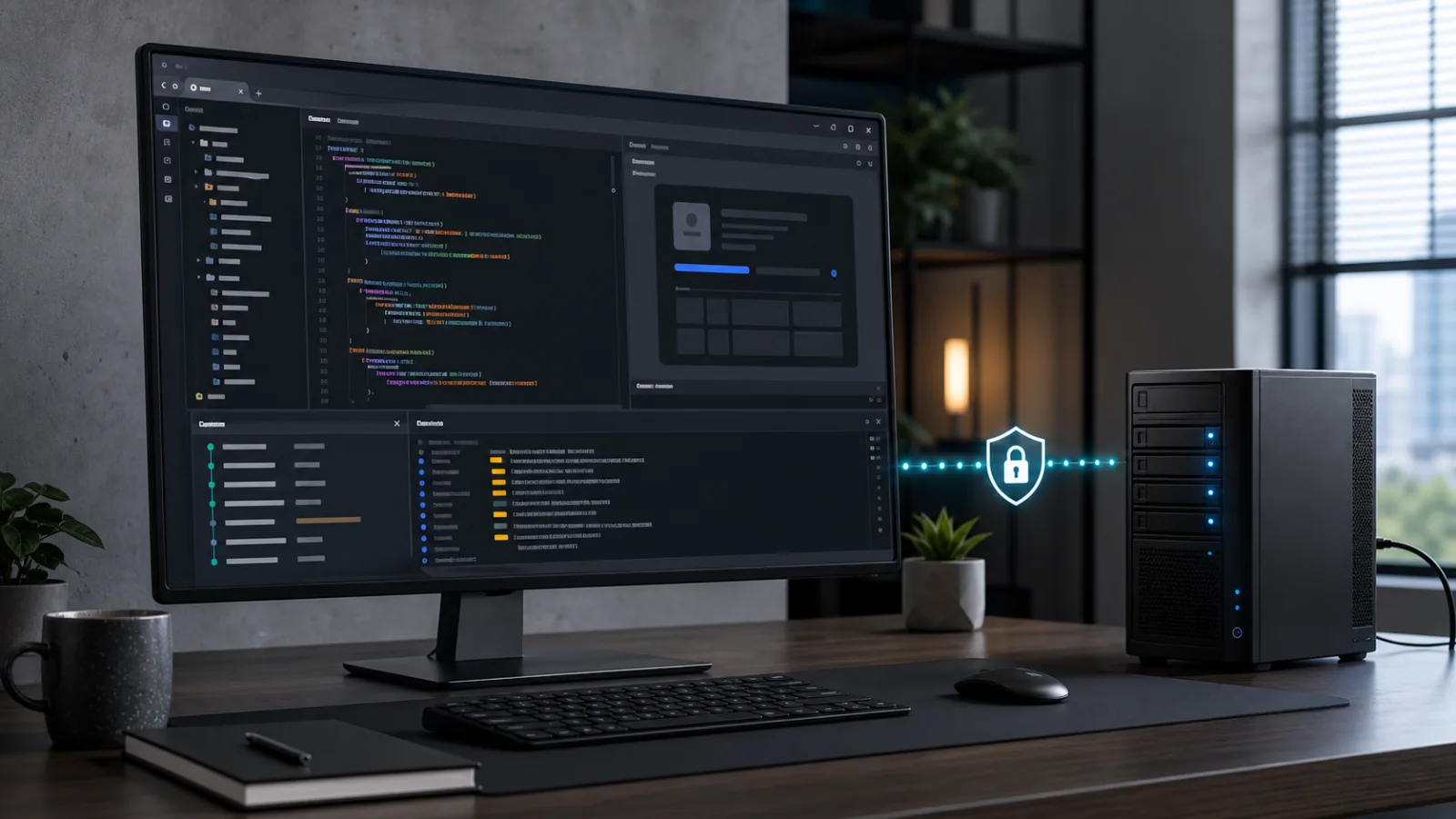
Run code-server on VPS infrastructure when you want a persistent development environment that is available from a browser while your projects, Git repositories, settings, and extensions stay on a Linux server you control. The VoyraCloud code-server application image starts with password authentication enabled and listens only on the VPS loopback interface. You first connect through an SSH Tunnel instead of exposing a terminal-capable Web IDE directly to the public internet.
TL;DR
- The VoyraCloud image provides code-server and Git on Ubuntu, while language runtimes, project dependencies, extensions, domains, and backups remain user-managed.
- code-server listens on
127.0.0.1:8080, so{server-ip}:8080is not a public application address. - Use the SSH Tunnel shown in the resource details, open
http://127.0.0.1:8080locally, and sign in with the unique password generated for your VPS. - Do not disable authentication. code-server includes a terminal, so an unauthorized user could execute commands with the service user’s permissions.
- Use a domain, a WebSocket-capable reverse proxy, trusted HTTPS, and an additional access-control layer before publishing the IDE on the internet.
- Cloud VPS starts at the eligible 2 vCPU, 2 GB RAM, and 40 GB storage plan. Residential IP VPS starts at 2 vCPU, 4 GB RAM, and 60 GB storage.
- A reboot preserves files on VPS storage and restarts the service, but persistence is not a backup. Keep tested copies outside the VPS.
What Is code-server?
code-server is an open-source project that runs a VS Code-style development environment in a web browser. It provides a code editor, integrated terminal, Git workflow, extension support, settings, and access to files stored on the remote machine.
It is not Microsoft Visual Studio Code, GitHub Codespaces, or the multi-user Coder platform. It is a self-hosted browser IDE intended for a user who controls the underlying server. The browser is only the interface: code execution, terminals, repositories, build tools, and development services run on the VPS.
This architecture is useful when you work from several computers, need an always-available Linux environment, or do not want project files and tools tied to one workstation. It also changes the security boundary. Anyone who enters the IDE can potentially open a terminal, inspect project files, and execute commands as the code-server service user. Access protection is therefore part of the deployment, not an optional cosmetic setting.
The official code-server requirements recommend at least two CPU cores and 1 GB of RAM and require WebSocket support. Actual project needs may be higher when you install compilers, language servers, containers, databases, or memory-intensive build tools.
What Does the VoyraCloud Image Include?
The application image prepares a private code-server service and Git, but it does not turn the VPS into a managed development platform. You retain root access to the VPS and decide which languages, packages, repositories, and extensions to add.
| Delivered by the image | User-managed or not included |
|---|---|
| Ubuntu 24.04 LTS | Operating-system maintenance after delivery |
| A fixed stable code-server release | Automatic code-server upgrades |
| Git command-line tools | Git hosting account and credentials |
| Non-root code-server service | Shared team accounts or role management |
| Password authentication enabled | External identity provider or single sign-on |
| Unique random password for each VPS | Password rotation policy after first login |
Local-only listener on 127.0.0.1:8080 | Public domain, reverse proxy, or trusted HTTPS |
| Automatic service start after a normal reboot | High availability or automatic failover |
| Persistent VPS storage | Automatic off-server backup |
| Extension installation support | Preinstalled third-party extensions or compatibility guarantees |
| Integrated terminal and development-port proxy | Language runtimes, databases, Docker, or user projects |
The Application section in your VoyraCloud resource details shows the code-server version delivered when the VPS was created. It does not update automatically when you later change the software yourself.
Quick Start: How Do You Access code-server Safely?
The safe initial path is to establish an SSH Tunnel, retrieve your instance password over SSH, and open the loopback URL on your own computer. This keeps port 8080 private and encrypts the traffic between your computer and the VPS.
- Open the VoyraCloud code-server page and continue to the purchase flow.
- Select an eligible Cloud VPS or Residential IP VPS plan and any region currently offered by that product.
- Confirm that code-server is selected in Images, create the VPS, and wait until provisioning completes.
- Open the resource details and copy the displayed SSH Tunnel command. It follows this pattern:
ssh -p <ssh-port> -N -L 8080:127.0.0.1:8080 <ssh-user>@<server-ip>- Keep that SSH session open. If it exits, the tunnel closes, but code-server continues running on the VPS.
- Open a second SSH session using the connection values shown for your resource:
ssh -p <ssh-port> <ssh-user>@<server-ip>7. Read the generated password from your code-server configuration:
sed -n 's/^password: //p' ~/.config/code-server/config.yaml8. In your local browser, open:
http://127.0.0.1:80809. Enter the password from step 7, open the integrated terminal, and verify Git:
git --versionUse the actual SSH user and port from your resource details rather than assuming root and port 22. The code-server process runs under the image’s non-root user, so the configuration command should be run as that same SSH user.
The address uses HTTP because it is reached only through the encrypted SSH Tunnel on your own computer. It is not a public production URL. Do not change the listener to 0.0.0.0:8080 merely to make the IP address open in a browser.
If local port 8080 is already in use, choose a different port on the left side:
ssh -p <ssh-port> -N -L 18080:127.0.0.1:8080 <ssh-user>@<server-ip>Then browse to http://127.0.0.1:18080. Keep the remote destination as 127.0.0.1:8080.
How Do You Change the code-server Password?
Change the generated password by editing the code-server configuration as the service user and restarting the service. Use a unique password that you do not reuse for SSH, Git hosting, email, or another VPS.
Open the configuration file:
nano ~/.config/code-server/config.yamlKeep these security settings:
bind-addr: 127.0.0.1:8080
auth: password
cert: false
Replace only the value after password: with your new strong password, save the file, and restart the user-specific service:
sudo systemctl restart code-server@"$(whoami)"Reconnect through the tunnel and verify the new password before closing your existing authenticated browser session. The official code-server FAQ also documents an Argon2 hashed-password option. If you adopt it, follow the current official syntax, keep a recovery path through SSH, and test the service after the change.
Never set auth: none on a publicly reachable deployment. An SSH Tunnel limits network reachability, but keeping password authentication enabled adds a second control and prevents accidental no-auth exposure if the network configuration changes later.
How Do You Add a Project and Git Repository?
Create or clone projects inside a directory owned by the non-root service user, then open that directory from the browser IDE. Avoid developing as root because editor extensions, project scripts, and package lifecycle hooks can execute code.
To clone a repository over HTTPS:
mkdir -p ~/projects
cd ~/projects
git clone https://github.com/<owner>/<repository>.git
For a private repository, use a credential method supported by your Git provider. Do not paste long-lived access tokens into source files, shell scripts, editor settings, or terminal commands that remain in shell history. Prefer a provider-supported credential helper, a narrowly scoped token, or SSH agent forwarding from a trusted workstation.
Before forwarding an SSH agent, understand the trust boundary: processes running as your remote user may request signatures from the forwarded agent while the session is active. Do not forward a high-value personal key into an untrusted project environment. A repository-specific deploy key or narrowly scoped credential can reduce the consequence of compromise.
The image does not install language toolchains for every project. Add only the runtime your code needs and use the project’s lockfile to keep dependencies reproducible. Review installation scripts before running them, especially commands copied from a repository README or executed automatically by a package manager.
How Do Extensions Work in code-server?
code-server supports extensions, but its extension ecosystem is not identical to desktop VS Code and not every extension will work in a browser-hosted environment. Some extensions depend on proprietary Microsoft services, desktop APIs, native binaries, or license terms that do not apply to forks.
Install an extension from the Extensions view or with the code-server command line:
code-server --install-extension <publisher.extension>You can also install a trusted VSIX file that you obtained from the extension publisher:
code-server --install-extension /path/to/extension.vsixThe official extension guidance explains supported marketplace and VSIX paths. It also discourages pointing code-server at Microsoft’s marketplace URLs because doing so conflicts with Microsoft’s Terms of Use.
Treat extensions as executable software. Review the publisher, source, permissions, update history, and project access before installation. An extension can read workspace files, start processes, connect to networks, and access credentials available to the service user. Install only what the project requires, and test extension updates before relying on them for important work.
How Do You Run and Preview a Development Service?
Run your development server on the VPS loopback interface and access it through code-server’s built-in port proxy or another SSH Tunnel. You do not need to expose every development port in the VPS firewall.
For example, if your project starts a development server on 127.0.0.1:3000, code-server can detect the port and offer a forwarded link in its Ports interface. The built-in proxy uses the authenticated code-server session and relies on WebSockets for the editor connection.
For a separate SSH Tunnel, run this on your computer:
ssh -p <ssh-port> -N -L 3000:127.0.0.1:3000 <ssh-user>@<server-ip>Then open http://127.0.0.1:3000 locally. This pattern is appropriate for development dashboards, local API documentation, and test applications that should not be available to the public.
Do not assume that a code-server password protects a service you bind directly to 0.0.0.0. A separate application port can bypass the IDE’s authentication entirely. Decide deliberately which services are private, which need their own authentication, and which are ready for internet exposure.
How Should You Publish code-server with HTTPS?
Public access requires a domain, a trusted TLS certificate, a reverse proxy that preserves WebSockets, password authentication, and preferably an additional identity-aware access layer. The official secure-access guide warns that exposing code-server without authentication and encryption can give an attacker control of the machine through its terminal.
Use this production checklist:
- Create a dedicated hostname such as
code.example.comand point its DNS record to the VPS. - Keep code-server bound to
127.0.0.1:8080. - Configure Nginx, Caddy, or another supported reverse proxy to reach the loopback service.
- Preserve HTTP/1.1 WebSocket upgrade headers and the original host information.
- Obtain a browser-trusted certificate and automate renewal.
- Redirect plain HTTP to HTTPS.
- Keep code-server password authentication enabled.
- Add an external access layer such as an identity-aware proxy when the risk warrants it.
- Test login, terminal, extension loading, file upload, and forwarded development ports.
- Confirm from another network that port
8080itself remains unavailable.
A minimal Nginx location needs WebSocket forwarding:
location / {
    proxy_pass http://127.0.0.1:8080;
    proxy_http_version 1.1;
    proxy_set_header Host $host;
    proxy_set_header Upgrade $http_upgrade;
    proxy_set_header Connection "upgrade";
    proxy_set_header X-Forwarded-For $proxy_add_x_forwarded_for;
    proxy_set_header X-Forwarded-Proto $scheme;
}
This is only the application proxy block. You must still configure the server name, trusted certificate, renewal, HTTP redirect, firewall, and access policy. Validate the complete configuration with the current documentation for your chosen proxy.
Self-signed certificates are a poor default for normal browser use because users must bypass or manually manage trust warnings. SSH Tunnel access is simpler when only one administrator needs the IDE. Public HTTPS is useful when you need browser access from devices without an SSH client, but it creates a larger attack surface and an ongoing certificate and proxy maintenance responsibility.
Cloud VPS or Residential IP VPS for code-server?
Cloud VPS is the normal choice for remote development, while Residential IP VPS is available when a stable residential network identity is genuinely part of the development or regional testing requirement. Both product lines provide the same code-server application behavior and support all regions currently offered for that product.
| Product | Eligible starting configuration | Appropriate use |
|---|---|---|
| Cloud VPS | 2 vCPU, 2 GB RAM, 40 GB storage | General coding, Git projects, lightweight builds, and remote development |
| Residential IP VPS | 2 vCPU, 4 GB RAM, 60 GB storage | The same development workflow when a stable residential network origin is required |
The purchase minimum is an eligibility gate, not a performance guarantee. Larger projects may need more resources for language servers, package installation, TypeScript indexing, compilation, local databases, container builds, or several concurrent processes. Monitor memory, CPU, disk use, and free storage after installing your real toolchain.
Residential network identity does not improve editor performance and should not be presented as a security feature for the IDE. Choose it only when the network origin itself has a legitimate role in your work. Review current configurations on the VoyraCloud pricing page before purchase.
What Persists After a Reboot?
Files stored on the VPS persist through a normal reboot, and the code-server service starts again automatically, but live terminal processes and unsaved editor state may not survive. Save project work to disk and use appropriate process supervision for anything that must restart.
Persistent items include:
- Project files and local Git repositories.
- Editor settings, keybindings, and installed extensions.
- code-server configuration and password changes.
- Files written by tools into persistent directories.
Do not expect a reboot to preserve:
- An unsaved editor buffer.
- A command running in a normal terminal without supervision.
- An in-memory development server.
- Temporary files that your tools delete on exit.
- Browser session state on a different computer.
For long-running applications, use a service manager or container configuration designed for that application. code-server restarting does not automatically restart every command that was open in its terminal.
How Do You Back Up a code-server VPS?
Back up source code and environment state outside the VPS because local persistence cannot protect against deletion, corruption, compromise, or storage failure. Git remotes are useful for versioned source, but they may not contain uncommitted work, secrets, local databases, generated assets, editor settings, or deployment state.
Use a layered backup plan:
- Push committed source to a private Git remote you control.
- Identify project data that Git intentionally excludes.
- Back up code-server settings and extension state if recreating them would be costly.
- Export local databases with an application-consistent method rather than copying live database files blindly.
- Store encrypted backups outside the VPS.
- Retain more than one recovery point.
- Restore into a separate test environment and verify the project, credentials, editor, and build process.
Do not put secrets into a Git repository just to make backup easier. Back up credentials through an appropriate secret-management or encrypted recovery process, and rotate them if you suspect that the VPS or backup destination was exposed.
How Should You Update code-server?
Update deliberately by choosing a specific stable version, reading its release notes, backing up your data, and testing the editor and project workflow after installation. The image does not follow a floating latest release and VoyraCloud does not automatically upgrade an existing customer VPS.
Before updating:
- Record the current version with
code-server --version. - Review the official code-server releases and changelog for security fixes, regressions, and browser compatibility changes.
- Back up projects, settings, extension state, and the current configuration.
- Choose an exact stable version rather than an edge build or floating package target.
- Keep an SSH session available in case the browser interface fails.
- Install the new version using the current official method for Ubuntu.
- Restart the service and check its status.
- Test password login, WebSocket connectivity, terminal access, Git, required extensions, and a representative project.
- Confirm that the listener is still
127.0.0.1:8080and authentication is still enabled.
The official upgrade page states that user data is preserved when a new version is installed over the old one. That expected behavior does not replace a backup or prove that every extension and project remains compatible.
Operating-system security updates, language runtimes, package managers, reverse proxies, certificates, extensions, and project dependencies have separate update cycles. Updating only code-server does not make the entire development environment current.
Common Mistakes to Avoid
Most code-server deployment failures come from weakening access controls, confusing persistence with backup, or assuming browser IDE compatibility is identical to desktop VS Code. Avoid these mistakes:
- Binding
8080to every interface for convenience. - Setting
auth: noneon a publicly reachable server. - Publishing the IDE over plain HTTP instead of using a tunnel or trusted HTTPS.
- Reusing the generated password across several VPS instances.
- Running code-server or project commands as root.
- Treating every extension or proprietary marketplace integration as compatible.
- Installing unreviewed extensions, scripts, or repository dependencies.
- Exposing development ports without separate authentication.
- Assuming open terminal processes will survive a reboot.
- Calling VPS-local files a backup.
- Updating to a floating release without reading changes or retaining SSH recovery access.
- Storing Git tokens, API keys, or SSH private keys in project source.
FAQ
Can I open code-server at the VPS IP address?
No, the VoyraCloud image intentionally does not expose port 8080 on the public IP. Establish the SSH Tunnel shown in the resource details and open http://127.0.0.1:8080 on your own computer. Configure a domain, reverse proxy, trusted HTTPS, and access controls before enabling public browser access.
Why does the local URL use HTTP?
The HTTP URL is carried inside the encrypted SSH Tunnel and is reachable only from your local computer while the tunnel is open. It is not a secure public URL and should not be exposed directly on the internet.
Where do I get the initial password?
Connect to the VPS over SSH and read the unique password from your service user’s code-server configuration. The password is not shown in the VoyraCloud resource page, frontend API, logs, or analytics. Change it after confirming initial access.
Does the image include Node.js, Python, Docker, or databases?
No. The image provides code-server, Git, and the Linux environment needed for the browser IDE. Install and maintain the language runtimes, databases, containers, and project dependencies required by your own work.
Can I install normal VS Code extensions?
Some extensions work, but compatibility is not identical to desktop VS Code. Use the supported extension source or a trusted VSIX, check the extension’s license and runtime requirements, and do not redirect code-server to Microsoft’s marketplace URLs.
Can several people share one code-server password?
A shared password does not provide individual identities, roles, or auditability. This image is designed as a single-user self-managed workspace. Use separate VPS instances or a platform designed for team workspace management when several users need controlled access.
Will my work remain after a VPS reboot?
Saved files, repositories, settings, extensions, and code-server configuration remain on persistent VPS storage after a normal reboot. Unsaved editor buffers and ordinary terminal processes may not survive, and local persistence does not replace an off-server backup.
Does VoyraCloud automatically update code-server?
No. The image delivers a fixed stable version and existing instances do not automatically follow new releases. Review official release notes, back up data, install an exact stable version, and test authentication and project workflows after an update.
Conclusion
A code-server VPS gives you a persistent browser-based development environment while keeping the operating system, files, tools, and network controls under your administration. Begin with the private SSH Tunnel, retain password authentication, install only the runtimes and extensions your project needs, and add a trusted HTTPS reverse proxy only when public browser access is necessary.
Use the VPS management guide to plan the operating-system updates, access controls, monitoring, and backup work that remains outside the browser IDE.
Start with the VoyraCloud code-server application image, verify the delivered environment, and build your development workflow on a VPS you control.